
Your equipment isn't stored in a flat list — now your locations aren't either
The biggest locations update in Itefy's history is live. Nest locations up to five levels deep, classify them as sites, buildings, rooms, storage, vehicles or containers — and track mobile locations that carry your equipment around, with a full movement history.
In this article
- Nest locations the way your operation is built
- Tell Itefy what kind of place it is
- Locations that move: vehicles and containers
- Counts and values that roll up
- Put your sites on the map
- A proper page for every location
- Slice your reports by kind of location
- Good to know
- Try it with your own setup
Until now, locations in Itefy were a flat list. That worked fine when you had a handful of them — but nobody's operation is actually flat. Equipment lives on a shelf, in a room, in a building, on a site. And some of your "locations" aren't even standing still: the service van, the flight case, the shipping container. They move, and they take your equipment with them.
This update makes locations work the way the real world does. It's live for everyone, right now, and here's the thing we're most pleased about: if your flat list works for you, nothing changes. Everything below is opt-in.
Nest locations the way your operation is built
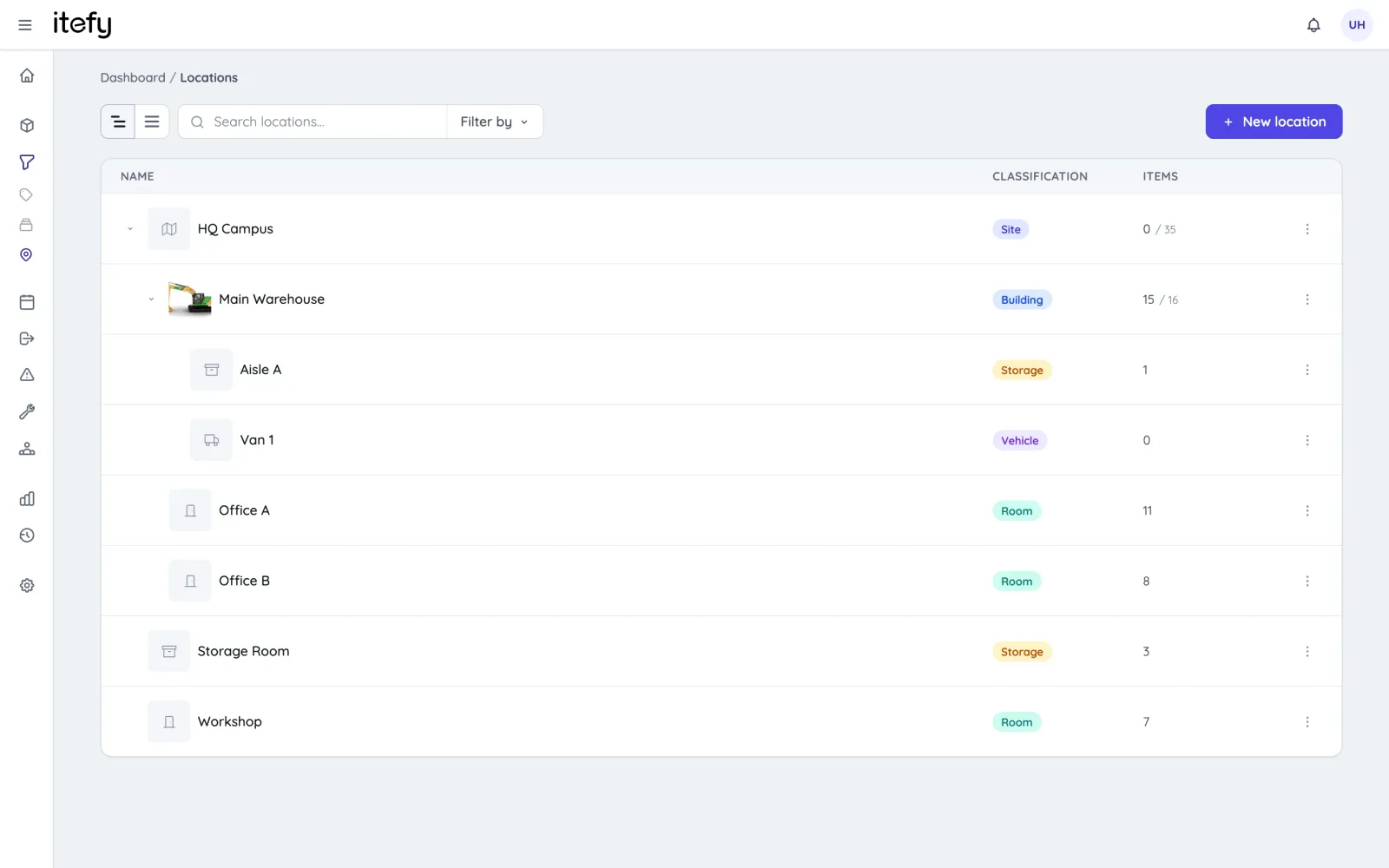
Locations can now have sublocations, up to five levels deep. So instead of a long list where "Shelf 3" sits alphabetically next to "Site office" and you just have to know which building it's in, you build the actual structure:
Oslo warehouse → Mezzanine → Aisle B → Shelf 3
The Locations page shows the whole thing as a collapsible tree (there's a flat-view toggle if you prefer the old list), and each location's page shows its sublocations and a breadcrumb back up to the top.
A small detail that matters more than it sounds: names only have to be unique among siblings. You can finally have a "Shelf 1" in every room without calling them "Shelf 1 (Room 204)", "Shelf 1 (Room 205)" and so on. The path tells them apart.
Tell Itefy what kind of place it is
Every location now has a classification — a colored label that says what sort of place it is:
- Site — a campus, property, address or job site
- Building — a building on a site
- Room — a room, hall, floor or area
- Storage — a shelf, rack, cabinet or bin
- Vehicle — a van, truck or service car
- Container — a case, toolbox or shipping container
- General — anything else (and the default, so all your existing locations are untouched)
Classifications show up as pills on lists and pickers, you can filter the locations page by them, and — this is where it gets useful — you can group and filter reports by them. More on that below.
When you nest a location somewhere unusual, like putting a Site inside a Storage shelf, Itefy will gently point it out — but it never blocks you. Real operations have exceptions, and we'd rather trust you than argue with you.
Locations that move: vehicles and containers
This one is our favourite. Vehicle and Container locations are mobile — the location itself is a thing that travels.
Here's the practical version. Say you run an AV rental company. You pack twelve items into a flight case (the case is a Container location, the items are located in it). You load the case into the van (Place at… → Van 1). The van drives to the venue. At no point did you check out or move twelve individual items — you placed one case, and everything inside it came along. Ask Itefy where that wireless mic kit is and the answer is: Flight case 4, in Van 1.
And because every placement is recorded, each mobile location gets a movement history on its page: where it's been, when, and who moved it. When a client claims the case never arrived, or you're trying to figure out which job site the toolbox got left at, the history usually answers it faster than the group chat does.
Some other setups we've seen this fit:
- Construction: a site container placed at whichever job site it's currently on. Tools live in the container; when the container moves to the next project, so does everything in it — and the movement log doubles as a record of which sites the container (and it's contents) have been to.
- Field service: each technician's van as a Vehicle location. The van's page is the answer to "what's in Kim's van right now", and the value rollup tells you what that van is worth if it gets broken into.
- Film & broadcast: camera cases and grip carts as containers. Pack once, place the case, and the whole kit travels together through prep, shoot and wrap.
Counts and values that roll up
Every branch of the tree shows its item count and total value including everything below it — directly on the locations page, no report needed. Click into Building A and you see both what's directly there and what's in it including sublocations.
Filtering follows the same logic. When you filter items, checkouts or reservations by a location, matches in its sublocations are included automatically — filter by the warehouse and you'll find the item that's on a shelf, in an aisle, on the mezzanine. On a location's own page there's a toggle between This location and Incl. sublocations when you do want the exact answer.
This sounds obvious, but it changes how you use locations day to day. You stop filtering by the one specific shelf you hope something is on, and start asking questions at whatever level you actually think: "what's in the Trondheim office?" is now one filter, not eleven.
Put your sites on the map
Fixed locations (sites, buildings, rooms, storage) can now carry a geolocation. Open the map, search for an address (with suggestions as you type), click to drop a pin, drag it to fine-tune — or hit My location and let the browser fill in where you're standing, which is handy when you're setting up a job site from the site itself.
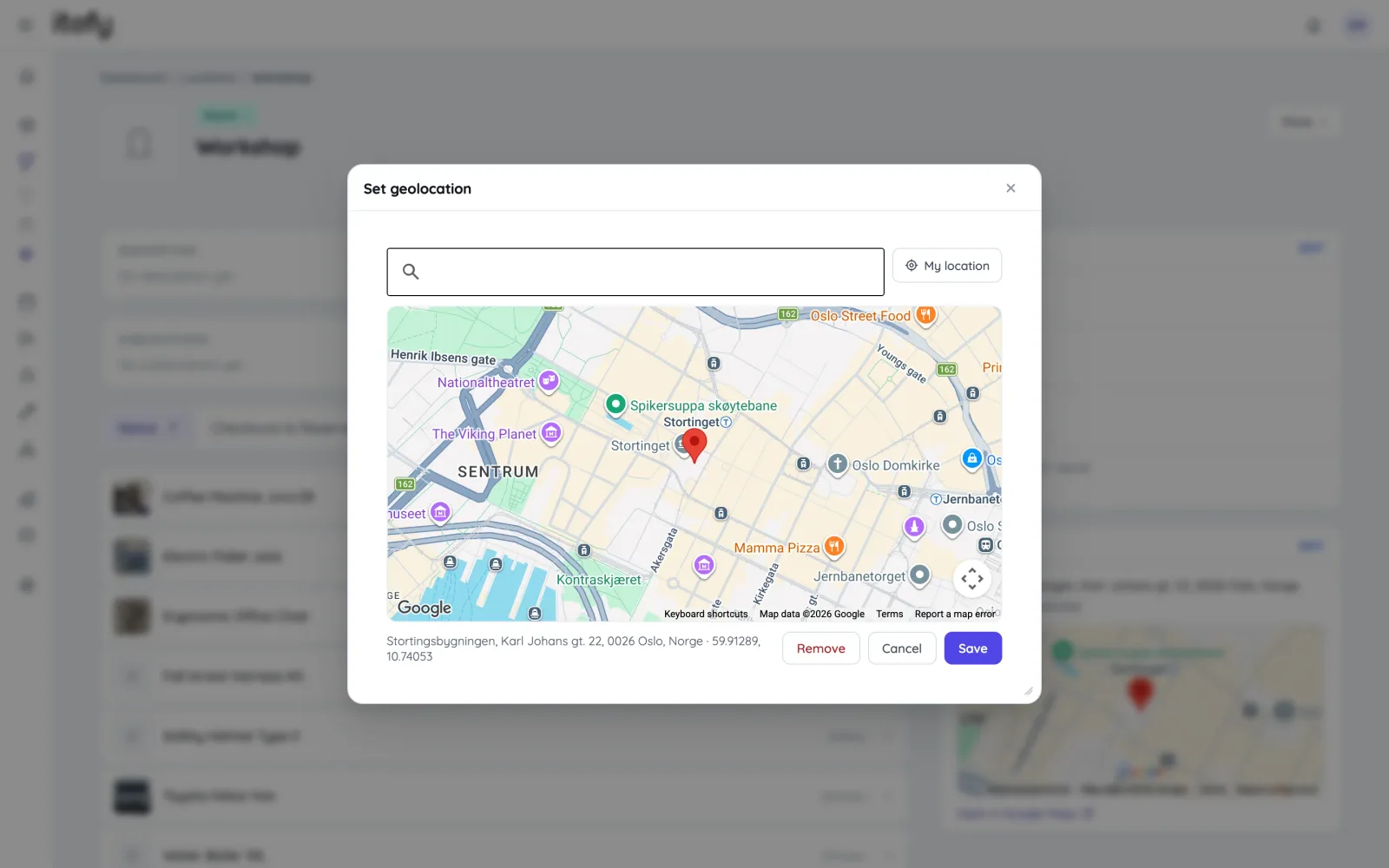
The location's page then shows a map preview and an open-in-Google-Maps link — so the new crew member driving to the remote site for the first time gets actual coordinates instead of "it's behind the old sawmill".
A proper page for every location
Location pages got rebuilt from the ground up, everytime we touched one during this project it gained something:
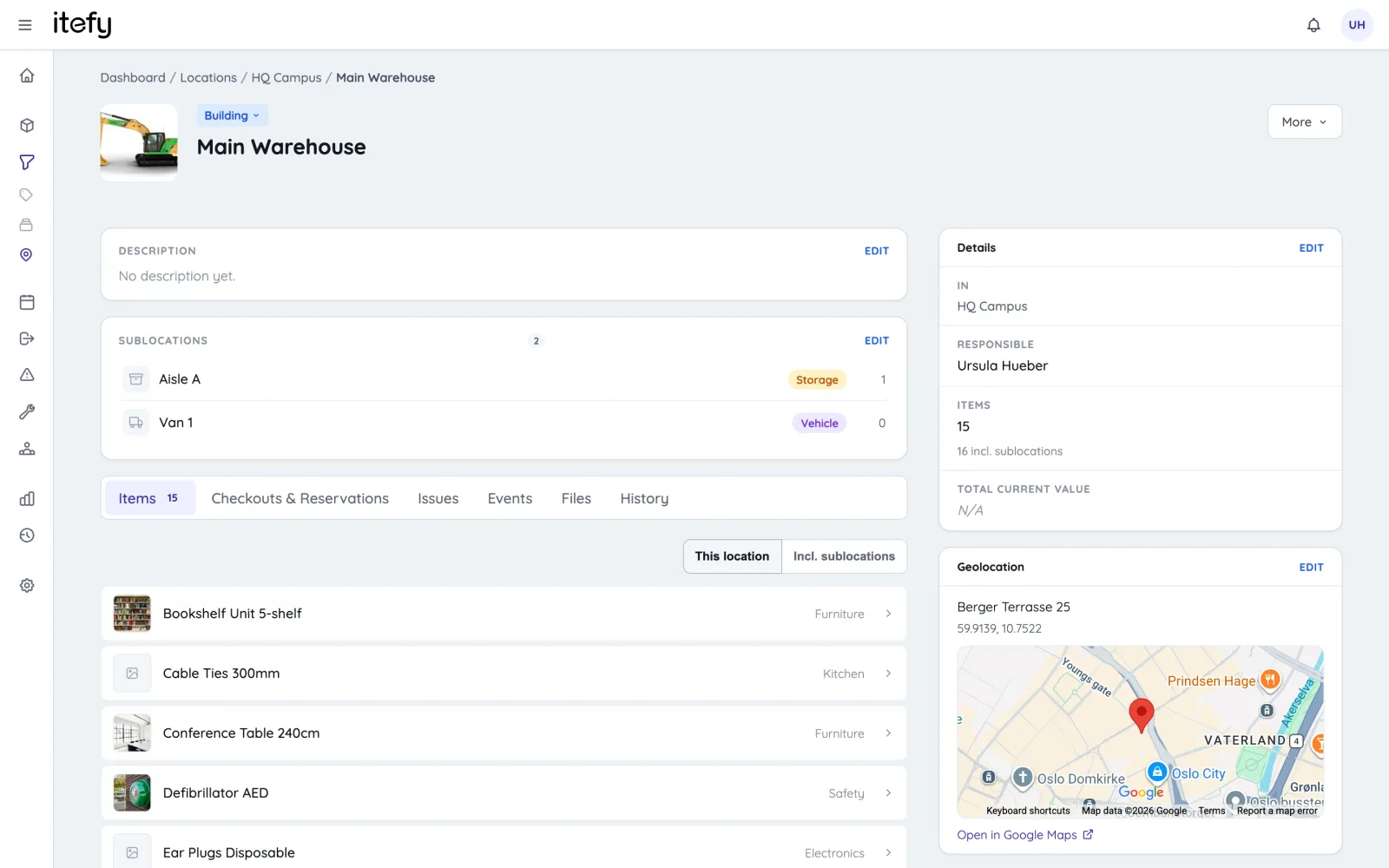
- Pictures — upload photos of the location; the first becomes its main picture and shows up as a thumbnail on lists and pickers. A photo of the actual shelf beats a naming convention.
- Person responsible — assign someone to a location, same as you can for items.
- Description and files — notes, floor plans, access instructions, contracts.
- Activity tabs — the checkouts, reservations, issues and events connected to a location, right on its page.
- History — placement history plus the log of items moved in and out.
Slice your reports by kind of location
All ten report types can now group and filter by location classification. That unlocks questions that were awkward before:
- How much equipment value is sitting in vehicles right now, versus in proper storage?
- Which site generates the most issues — not which shelf, which site?
- How does utilization compare between what's staged in containers and what's in the warehouse?
If you set up scheduled reports after the Reports 2.0 release, these dimensions plug straight into those too — a Monday-morning "value currently in vehicles" email is a two-minute setup.
Good to know
- Everything here is live now, on all plans. Existing locations are classified as General and stay exactly where they were — flat lists remain fully supported.
- Classifications can be changed at any time from the location's page (click the label next to the name).
- Deleting a location that has sublocations doesn't delete the children — they move up a level.
- The Help Center article on hierarchy and classifications covers the details.
Try it with your own setup
A good way to start: pick one building or one van, and rebuild just that corner of your operation as a tree. You don't have to restructure everything at once — the flat list and the tree coexist fine, and you can move locations into the hierarchy whenever it makes sense.
Open Locations in your account and have a look. And if you're not on Itefy yet, start a free trial — bring a messy storage room, it's what this was built for.