
400 items, one afternoon: the batch operations that make equipment tracking scale
Every equipment system works beautifully at twenty items. The ones that survive four hundred are the ones where moving, labelling, editing and handing out gear is a single operation instead of four hundred of them. Seven ordinary jobs, done both ways.
In this article
- Where bulk actually shows up
- Getting in: 340 rows, one file
- Staying true: one field, a hundred items
- Going out: 38 items, one record
- Labelling, multiplying, retiring
- Batching across time, not just across rows
- The part that isn't about time
Every equipment system demos well. You add a drill, book it, check it out, check it in, and the whole thing takes ninety seconds. It is genuinely hard to see the problem at that scale, which is why the problem always arrives later.
The trouble is that admin cost per item stays roughly constant while the number of items does not. Six clicks to change one item's location is nothing. Six clicks × 120 items is a Thursday. And because nobody has a spare Thursday, what actually happens is that the 120 items keep the wrong location, someone loses forty minutes looking for a case that the system swears is in the Oslo store, and within a year the register has quietly stopped being true. Registers don't rot because people are lazy. They rot because correcting them costs more than living with them being wrong.
So the useful question when you're evaluating equipment inventory management isn't "can it track an item?" — everything can. It's "what does it cost me to change my mind about four hundred of them?"
Where bulk actually shows up
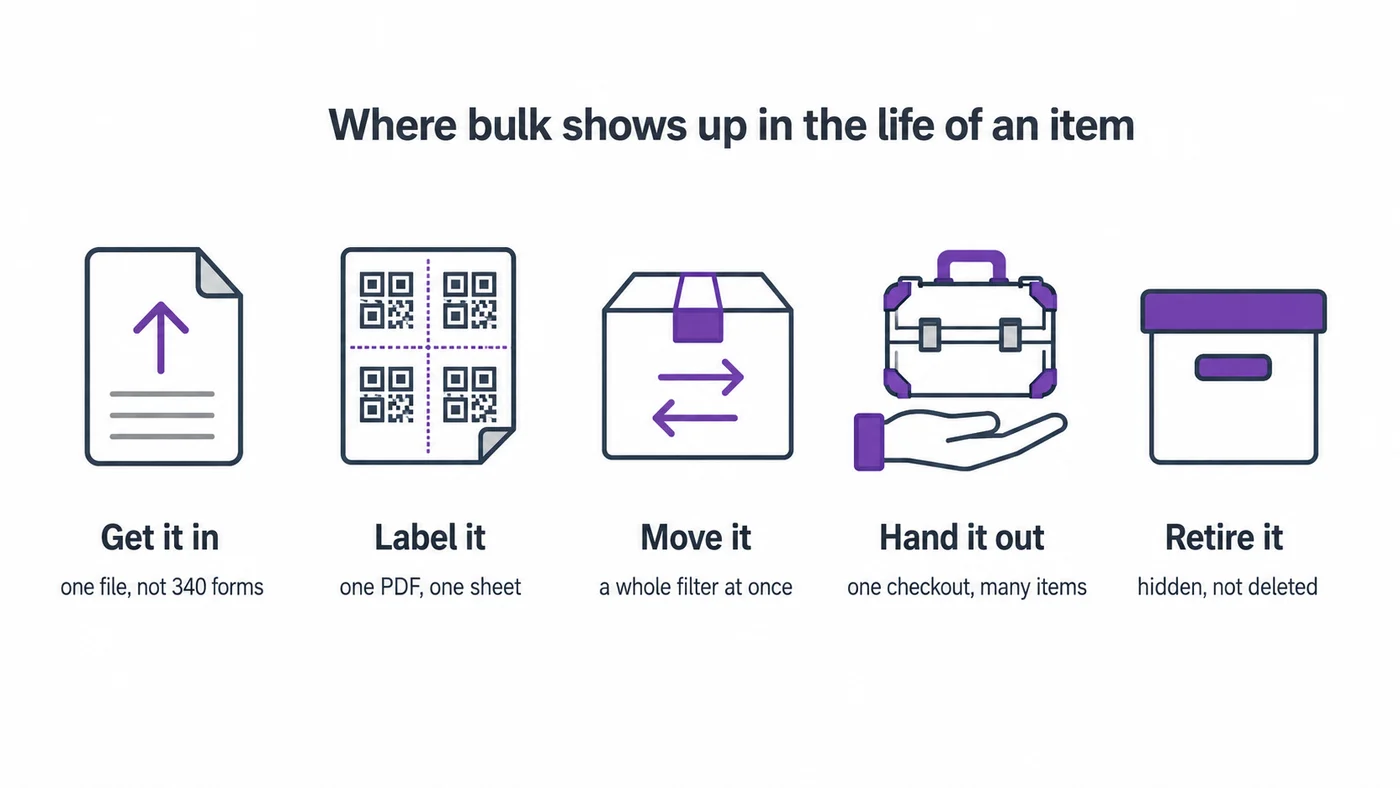
Not everywhere, as it turns out. Day-to-day equipment work is genuinely one-at-a-time: one checkout, one issue, one repair. Bulk matters at five specific moments, and they happen to be the five moments where most implementations die — the beginning, and every reorganisation after it.
Here is the same handful of ordinary jobs, priced both ways.
| The job | One at a time | As one operation |
|---|---|---|
| Move a 340-row list into the system | 340 forms | One file, three steps |
| Relabel a store after a reorganisation | 120 items × open, edit, save | One search, one run |
| Send 38 cases out with a crew | 38 checkouts | One checkout, 38 items |
| Print QR labels for the AV department | Item by item | One PDF, one sheet of labels |
| Register 24 identical laptops | 24 forms | One form, ×24 |
| Retire last season's kit | 60 items × two changes | Two runs |
Getting in: 340 rows, one file
The first bulk job is the one that decides whether there's a second. If moving your existing list into a system means retyping it, the trial ends on day two — which is a shame, because the list already exists. It's the spreadsheet you've been maintaining for years.
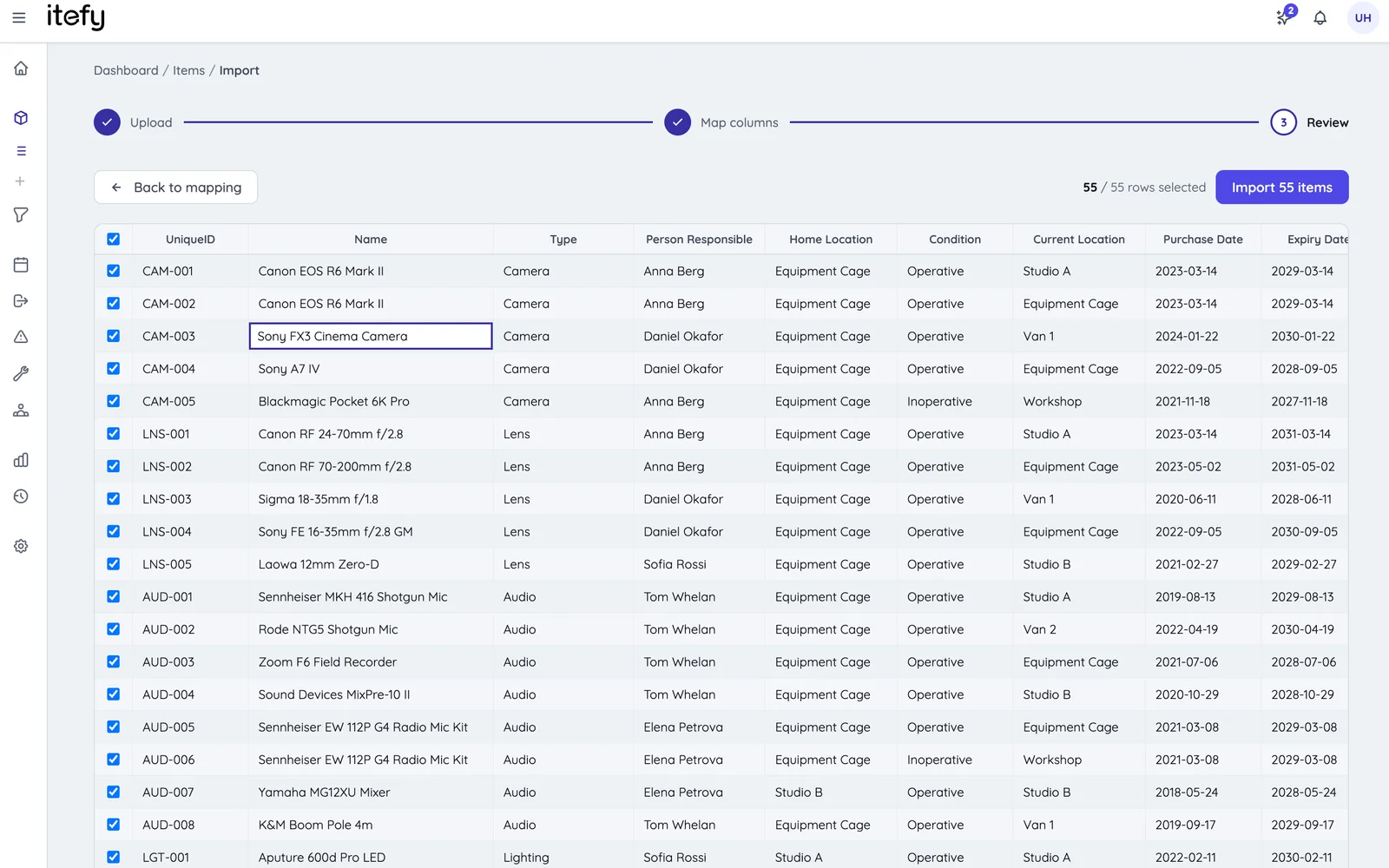
So Itefy reads it directly: .xlsx, .xls or .csv, through a three-step wizard. Upload the file, map the columns — recognised headings like Name, Unique ID, Type, Current Location, Condition, Purchase date and Purchase value are matched to fields automatically, and you fix the rest from a dropdown — then review every row in a grid where each cell is click-to-edit, with checkboxes to leave rows out. Types and locations that don't exist yet get created as the rows land, so you don't have to build the taxonomy first.
The practical consequence is that "get everything in" stops being a project and becomes an afternoon. If your list is messy, import it messy and fix it with the next tool on this page — that is a much better trade than perfecting a spreadsheet you're about to abandon. (There's a longer walkthrough in the Excel migration guide, and an honest comparison of what you gain and lose leaving the sheet.)
Staying true: one field, a hundred items
This is the one that keeps the register honest, so it's worth understanding the two shapes it comes in.
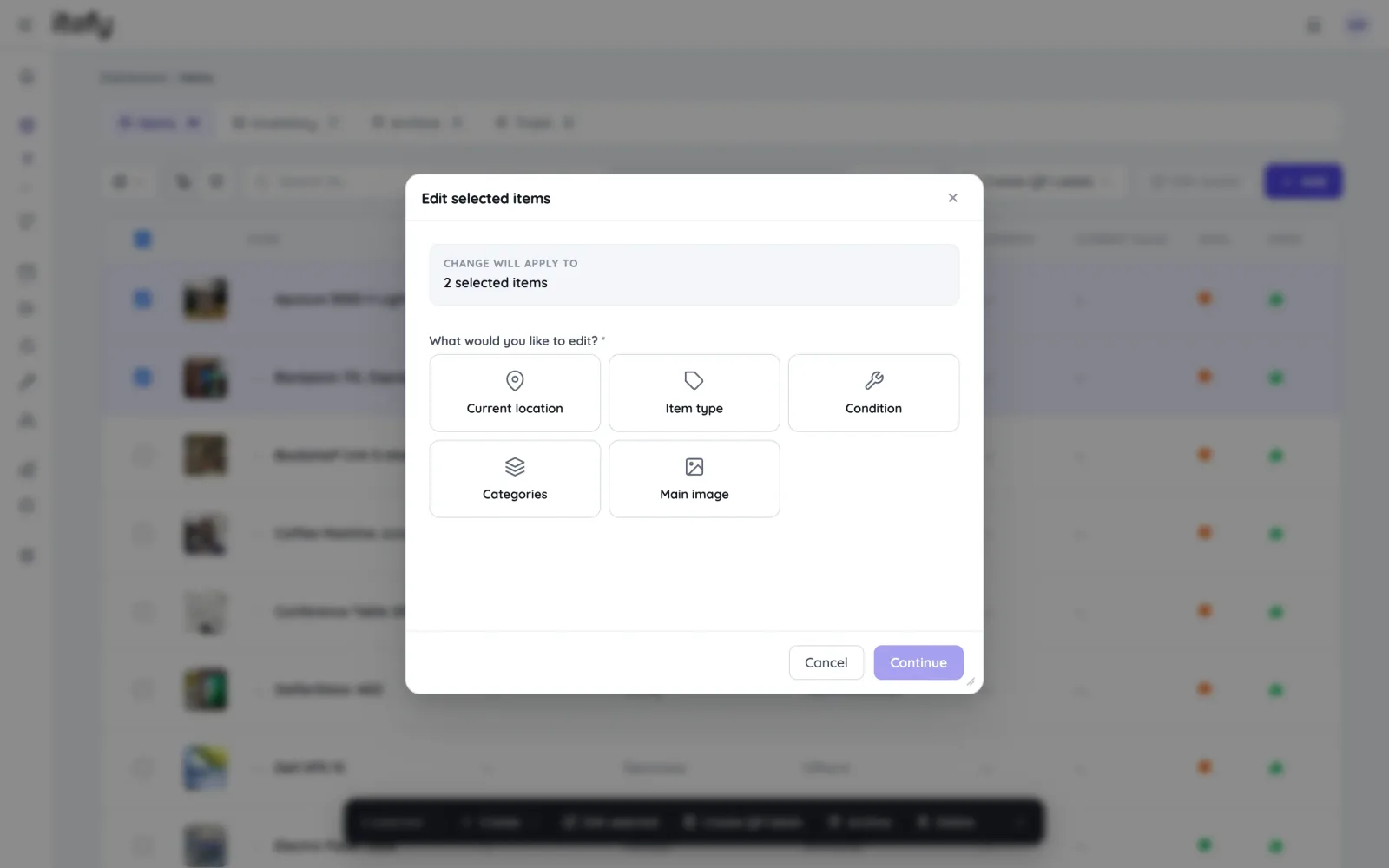
Edit selected works on the items you've ticked in the list. Edit results works on every item matching your current search and filters — including the ones on pages you never scrolled to. That second one is the powerful one: filter to type = Radio and location = Old depot, and the 140 matching radios are one operation away from their new home, whether you can see them or not. It deliberately refuses to run without a search or filter active, so there is no path to accidentally editing your entire account.
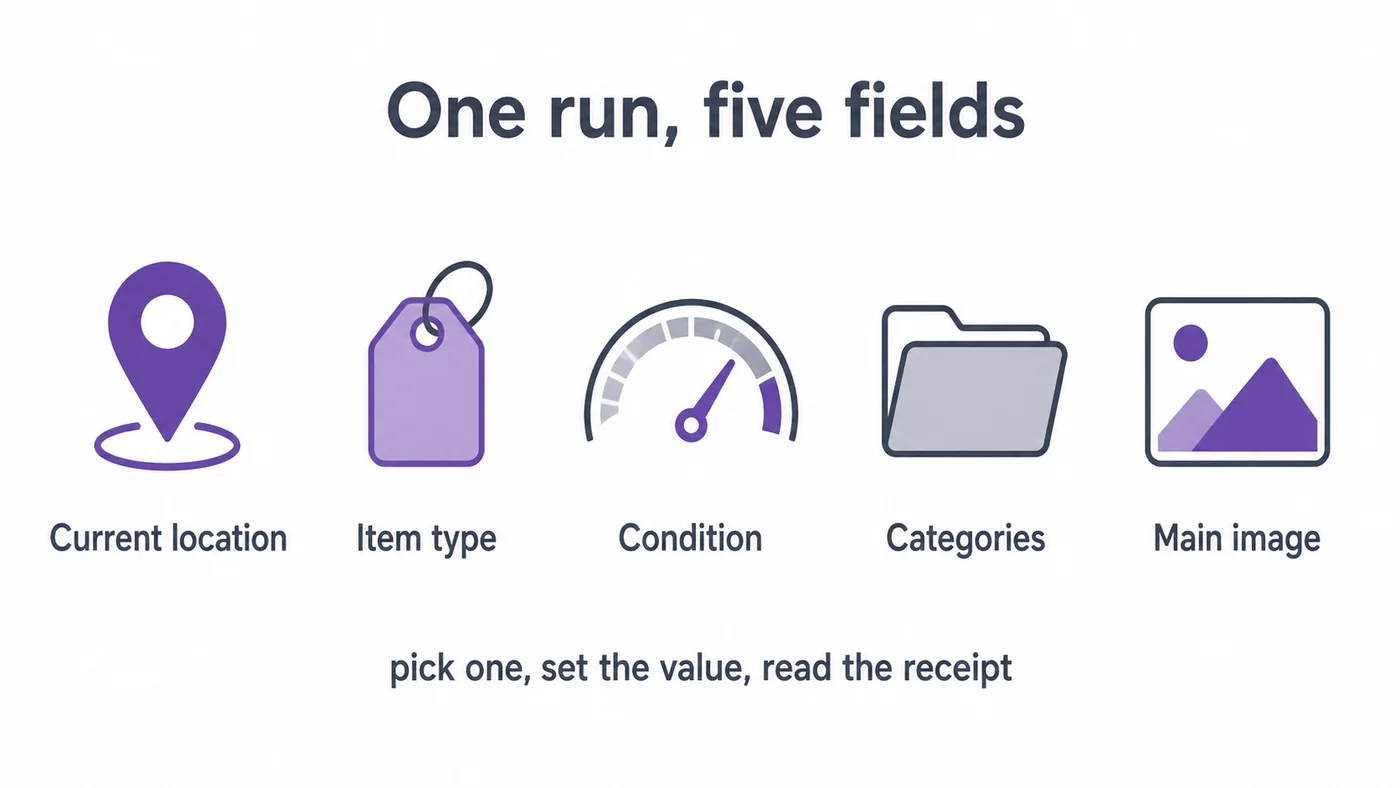
Five fields are batch-editable, one per run: current location, item type, condition (with remarks applied to every changed item), categories — added or removed, leaving the item's other categories alone — and the main image, uploaded once and shared across every item in the run rather than re-uploaded per item.
Which sounds modest until you map it onto real events. A department moves floor. A supplier's whole product line turns out to be miscategorised. A batch of harnesses fails inspection and all of them need to read Inoperative — failed annual LOLER check, quarantined pending replacement. A category scheme gets rethought in year two, which it always does. Each of those is a five-minute job or a lost day, and which one it is decides whether your data survives the year.
Going out: 38 items, one record
The other half of bulk isn't editing items — it's referencing many of them from one record.
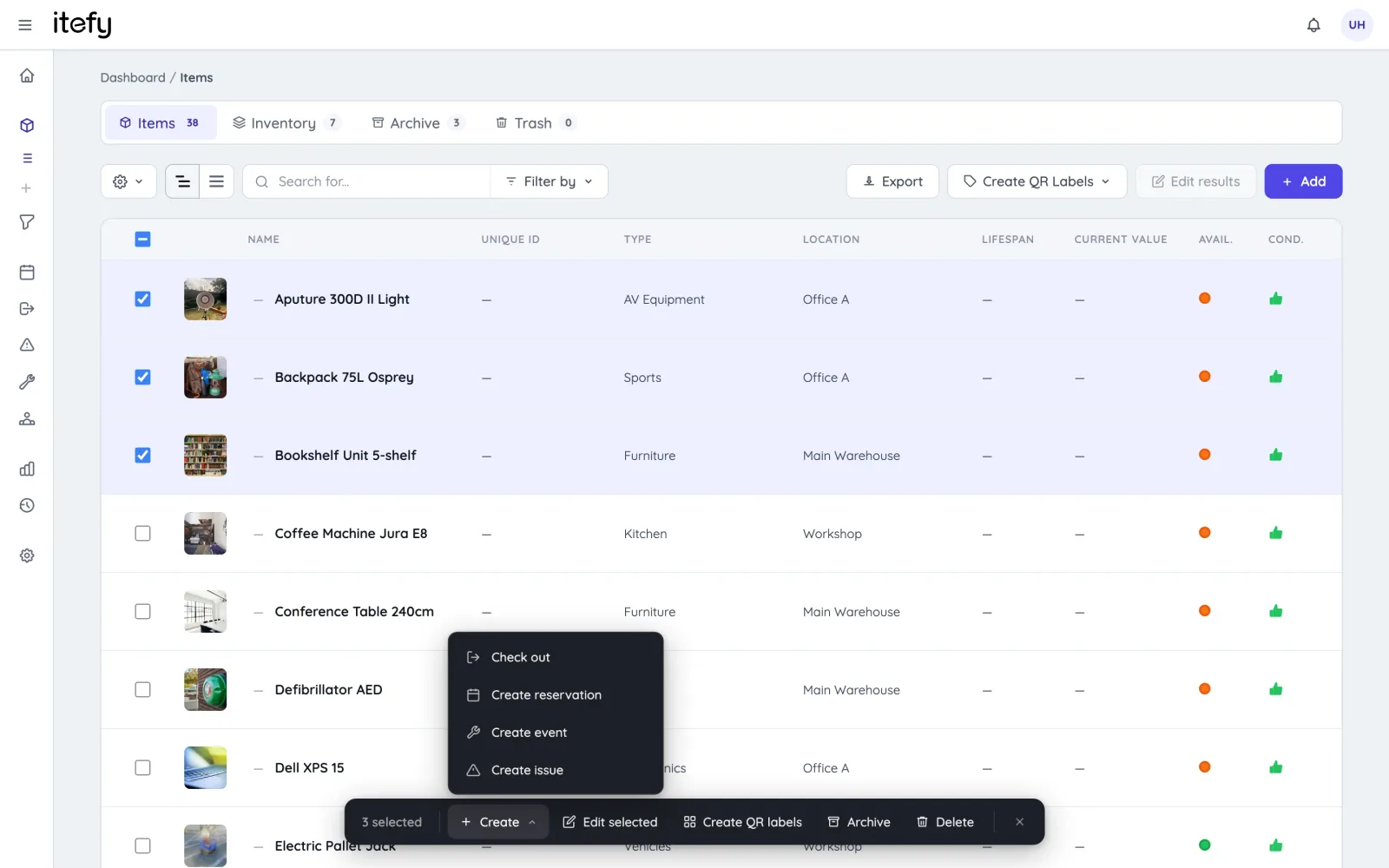
Tick items in the list and a selection bar appears along the bottom. From its Create menu, the whole selection becomes one checkout, one reservation, one event or one issue — prefilled and ready to save. A crew taking 38 cases to a shoot is one checkout with one due date and one named person, not 38 records to reconcile on Monday. An entire rack that took water damage is one issue, not 38.
Two related habits are worth stealing:
- Kits. If the same items always travel together, make them a kit once. Checking out the kit takes the container and everything in it — bulk you don't have to remember to perform. Assemble the kit by multi-selecting members, naturally.
- Check in what came back, not what went out. Returns are rarely all-or-nothing. The check-in window lists everything still out on that checkout with a Select all control, so you tick the 30 that came back, leave the 8 that stayed on site, and the record stays accurate instead of being closed optimistically.
Labelling, multiplying, retiring
Three more places where one-at-a-time quietly eats a week.
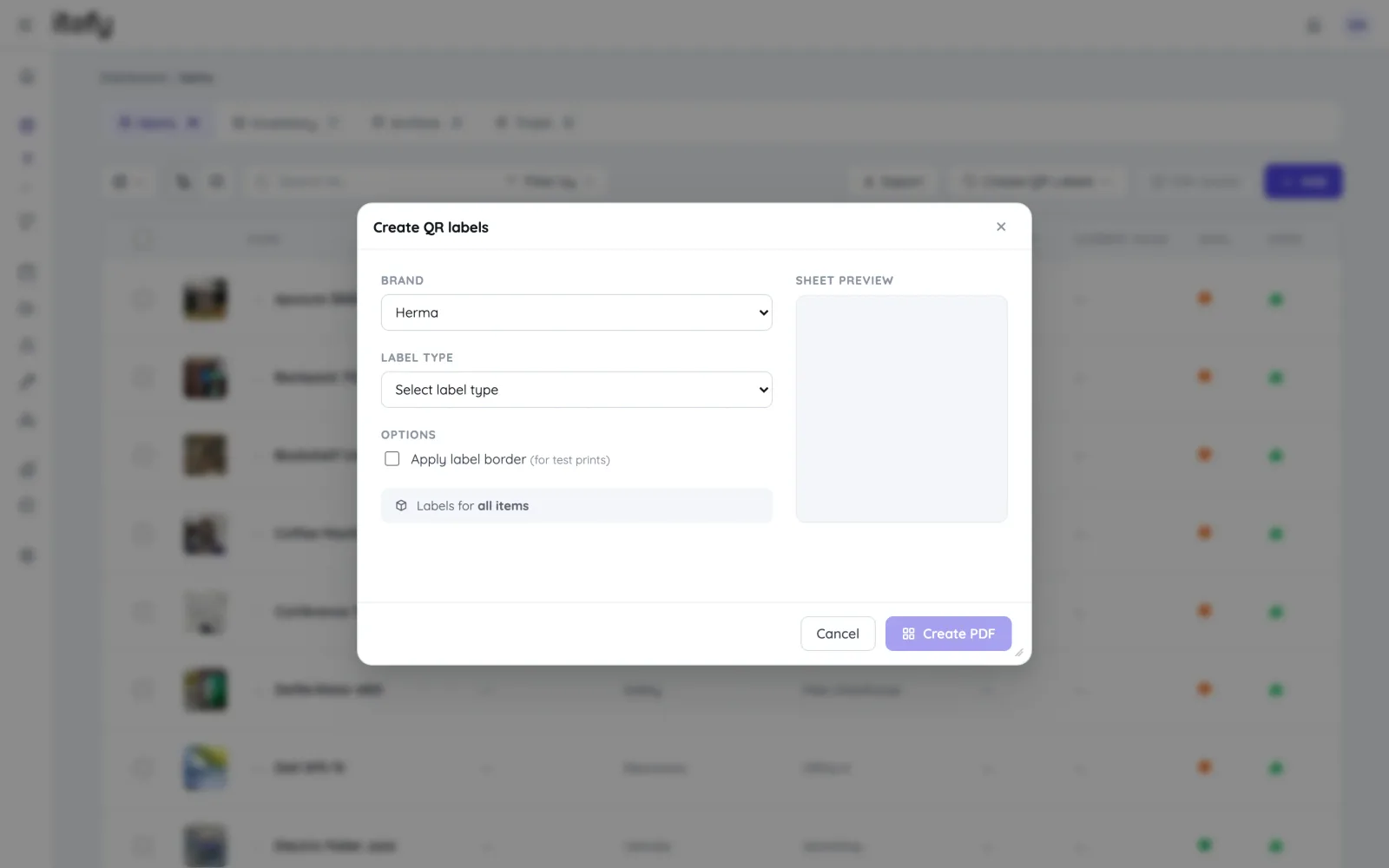
QR labels. Filter the list to whatever you want to tag — a location, a type, everything added this month — and generate a single print-ready PDF laid out for a standard Avery or Herma label sheet, each label carrying the code, the item name and the unique ID. There's an inverted version too, and it's the one most people should use for a first rollout: print blank pre-coded labels, walk the store sticking them on, and map each label to its item by scanning it in the phone app. No trips back to the desk, no printing labels for items you haven't found yet.
Multiply. Buying 24 identical laptops shouldn't mean 24 identical forms. Fill one in — type, location, purchase date, cost, description, categories, supplier, even the photo — tick Multiply item, and get 24 records with auto-numbered names, up to 500 in a run. They're independent from the moment they exist, so serial numbers go on individually later, which is the only part that genuinely differs between them.
Retiring. End of season, end of contract, end of a machine's life: select, set the condition, archive. Archiving hides items from lists, pickers, searches and new bookings while keeping every field, picture and line of history — so the depreciation and repair record of the fleet you just retired still shows up in reports. Delete moves to trash and is reversible; archive is the one you actually want. Both take the whole selection in one go, as do restore and unarchive.
Batching across time, not just across rows
Two features are batch operations wearing a different hat, and they're worth naming because people rarely go looking for them.
Recurring reservations book a series — every Tuesday, the first Monday of the month, the same fortnight every year — from one form, with a preview of the dates before you commit. Servicing schedules, weekly clinics, term-time lab slots: one action, a year of bookings.
Scheduled reports save a report's type, grouping, filters and period, then email it as Excel, CSV or PDF every Monday or on the 1st. It's a batch operation against your future attention: the utilisation and cost questions get answered whether or not anyone remembers to ask. The reports feature page covers what's in them.
The part that isn't about time
Here's the argument underneath all of this, and it isn't really about hours saved. A spreadsheet has one genuine advantage over most equipment software, and it's the reason people stay: you can select a column and fill down. That's the objection worth taking seriously — not "software is expensive", but "software makes me do things one at a time that I can currently do all at once." Any system that can't answer it will lose to the sheet, deservedly.
But fill-down is also the most dangerous thing a spreadsheet does. It's silent. It doesn't tell you it touched 340 rows instead of 300, it doesn't skip the ones you lack permission to change, it doesn't report what failed, and it overwrites the previous value with no record that there was one.
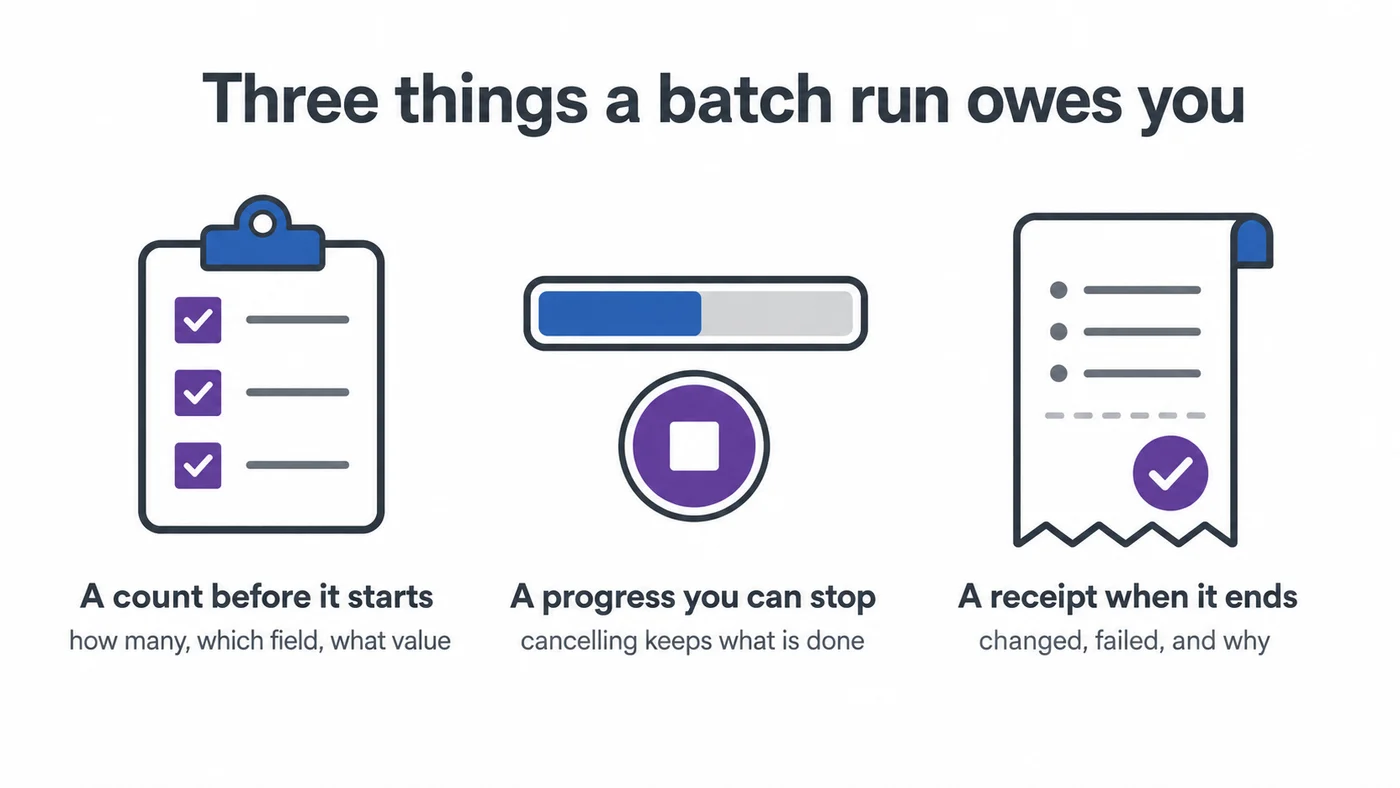
So a batch run should be bounded on both sides. Before: a summary saying how many items, which field, which new value — check it, then start it. During: a live count and a cancel that stops cleanly, keeping what's already done. After: a receipt listing what changed and what didn't, each failure with its reason, most commonly an item somebody else owns. And underneath, every change lands in that item's own history, so six months later "why is this in the Bergen store?" has an answer with a name and a date on it.
That's the trade. You give up fill-down's instant silence and get something that scales past the point where silence becomes expensive.
Our own free equipment tracking spreadsheet had to answer the same objection on a smaller scale, and how it did is worth a line here, because it is the same trade in miniature. Select several rows and you can check them all out, move them all, or change their condition in one go — and one undo takes the whole thing back, item rows and history lines together. It is still a spreadsheet, so it will not skip the rows you lack permission to change or hand you a receipt of what failed. But it refuses to be silent, which is the half of the problem that bites first.
Nobody buys an equipment system for its batch operations. They buy it for knowing where things are and who has them. But batch operations are what decides whether it still knows that in year three — whether the register is a living record or an archaeological layer that everyone works around. Move the shelf, rename the category, retire the fleet, and if each of those is five minutes instead of a lost day, the data stays true.
Four hundred items, one afternoon. Then back to one at a time, which is how the actual work happens anyway. Try it on your own list — the import wizard is the fastest way to find out whether any of this holds for your inventory.
Frequently Asked Questions
-
Use a batch edit. In Itefy you either tick the items in the list and choose Edit selected, or search and filter first and choose Edit results, which applies the change to every item matching the search across all pages. You pick one field per run — location, type, condition, categories or main image — confirm a summary, and get a receipt listing what changed and what failed.
-
Yes. Itefy reads .xlsx, .xls and .csv files through a three-step wizard — upload, map columns, review. Recognised column headings are mapped automatically, you can correct any cell before importing, and item types and locations that don't exist yet are created as the rows are imported.
-
Considerably. Rather than generating codes item by item, you filter the list to the items you want and produce one printable PDF laid out for a standard Avery or Herma label sheet. You can also print blank pre-coded labels first, stick them on as you walk the store, and map each one to its item by scanning it with the phone app.