
Your equipment bookings, in the calendar you already use
Itefy reservations and return dates can now appear in Google Calendar, Outlook and Apple Calendar. Subscribe once for the weeks ahead, or add a single booking in a click when it is happening today. Here is how both work, and the one thing worth knowing before you rely on it.

The short version
- Subscribe from the Reservations or Checkouts calendar, and your bookings appear in Google Calendar, Outlook or Apple Calendar.
- Google and Outlook refresh subscribed calendars every few hours, so for anything happening today, use Add to calendar instead. It lands immediately.
- Checkouts show up as their return date, so you get reminded when equipment is due back.
- Every download comes in two versions, and the one without links is made for sending to customers and subcontractors.
- Included on every plan, at no extra cost.
In this article
- Two jobs, two ways
- Subscribe to your bookings
- The delay, and how to live with it
- Add a booking now
- Checkouts show up as a return date
- Treat the link like a password
- What it does not do
- Which plans include it
It is Monday, 07:40. You open your phone to see what the week holds. Tuesday has a client meeting, Wednesday a dentist, Thursday is blank.
Thursday is not blank. Thursday is when the camera package goes out to the shoot in Bergen, and it was booked three weeks ago — in the equipment system, which is a different app, which you have not opened since Friday.
Nobody forgot anything. The booking was made properly, in the right place. It just was not in the place you look.
The short version: Itefy can now put your bookings in Google Calendar, Outlook and Apple Calendar. There are two ways to do it, because there are two different jobs to do — and one of them comes with a delay that is worth understanding before you depend on it.
Two jobs, two ways
Looking at the weeks ahead and being reminded about this afternoon are different needs, and no single mechanism does both well.
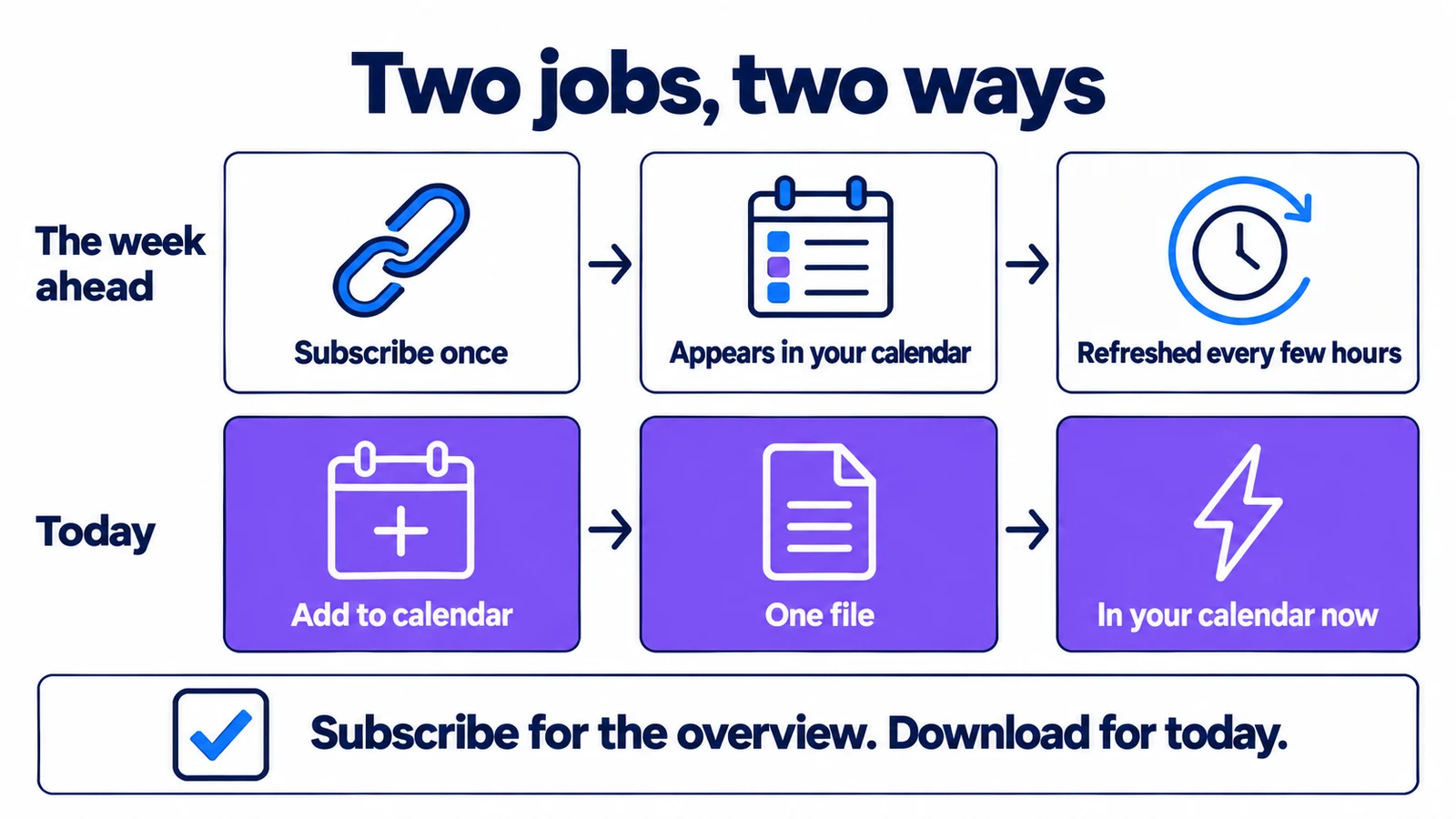
Subscribe gives you a calendar that keeps itself up to date. Add to calendar gives you one booking, or a selection, right now. Most people will want both.
Subscribe to your bookings
Open Reservations or Checkouts and click Subscribe. Choose what you want in the feed — reservations, checkouts, or both — and whether you only want bookings assigned to you. Then Create link, copy it, and paste it into your calendar app.
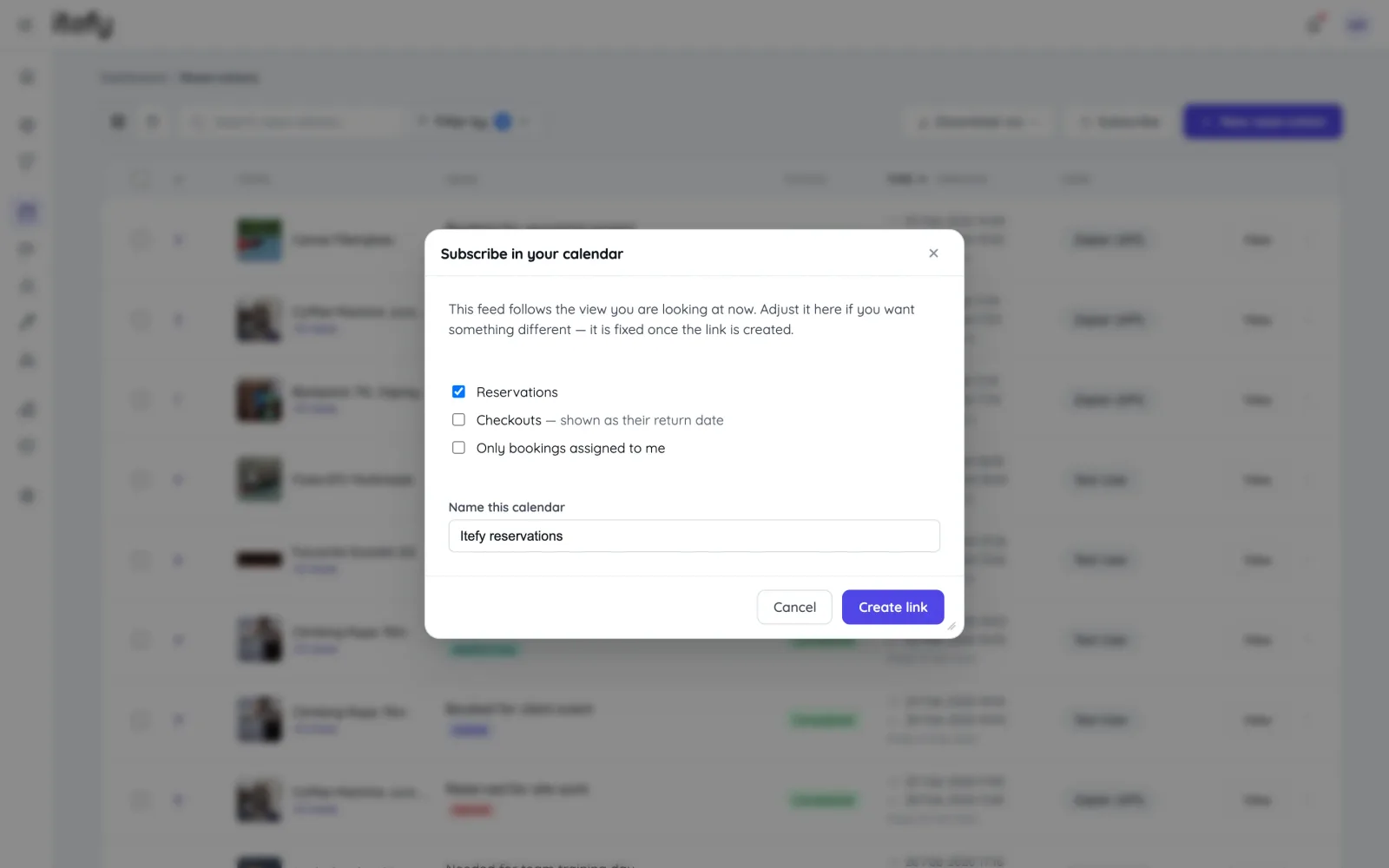
The feed follows the view you were in. If you had filtered the list down to one location, or to maintenance bookings only, that filter comes with it, and the dialog tells you so. That makes it easy to build calendars with a purpose: one for the crew that works out of the Oslo warehouse, one for the person who handles every repair.
Adding it takes under a minute in each app:
- Google Calendar: Other calendars → + → From URL.
- Outlook: Add calendar → Subscribe from web.
- Apple Calendar: File → New Calendar Subscription.
The feed covers three months back and twelve months ahead. Recurring reservations arrive as individual occurrences, so an occurrence you moved or completed in Itefy looks exactly that way in your calendar.
The delay, and how to live with it
This is the part most vendors mention in small print, so we are putting it in the middle.
Google refreshes subscribed calendars on its own schedule, typically every 8 to 24 hours. Outlook can take longer. It is decided by Google and Microsoft, not by us: there is no refresh button, no setting, and nothing any equipment system can do to speed it up. Every calendar subscription on the internet works this way.
For planning, that is fine. The shoot on Thursday was booked three weeks ago; it has been in your calendar for most of that time. It is not fine for a booking someone moved to this afternoon.
So treat them like this:
- Your subscribed calendar is the overview. What is coming, and roughly when.
- Itefy is the source of truth for today. If it matters in the next few hours, check it there, or use the next section.
Add a booking now
For a booking happening today or tomorrow, skip the subscription and add it directly. A downloaded calendar file lands the moment you open it.
- On a reservation, open More and choose Add to calendar.
- On a checkout, click Add to calendar in the header.
- For several at once, tick them in the list and choose Add to calendar in the bar at the bottom — or use Download .ics in the toolbar to take every result of your current search.
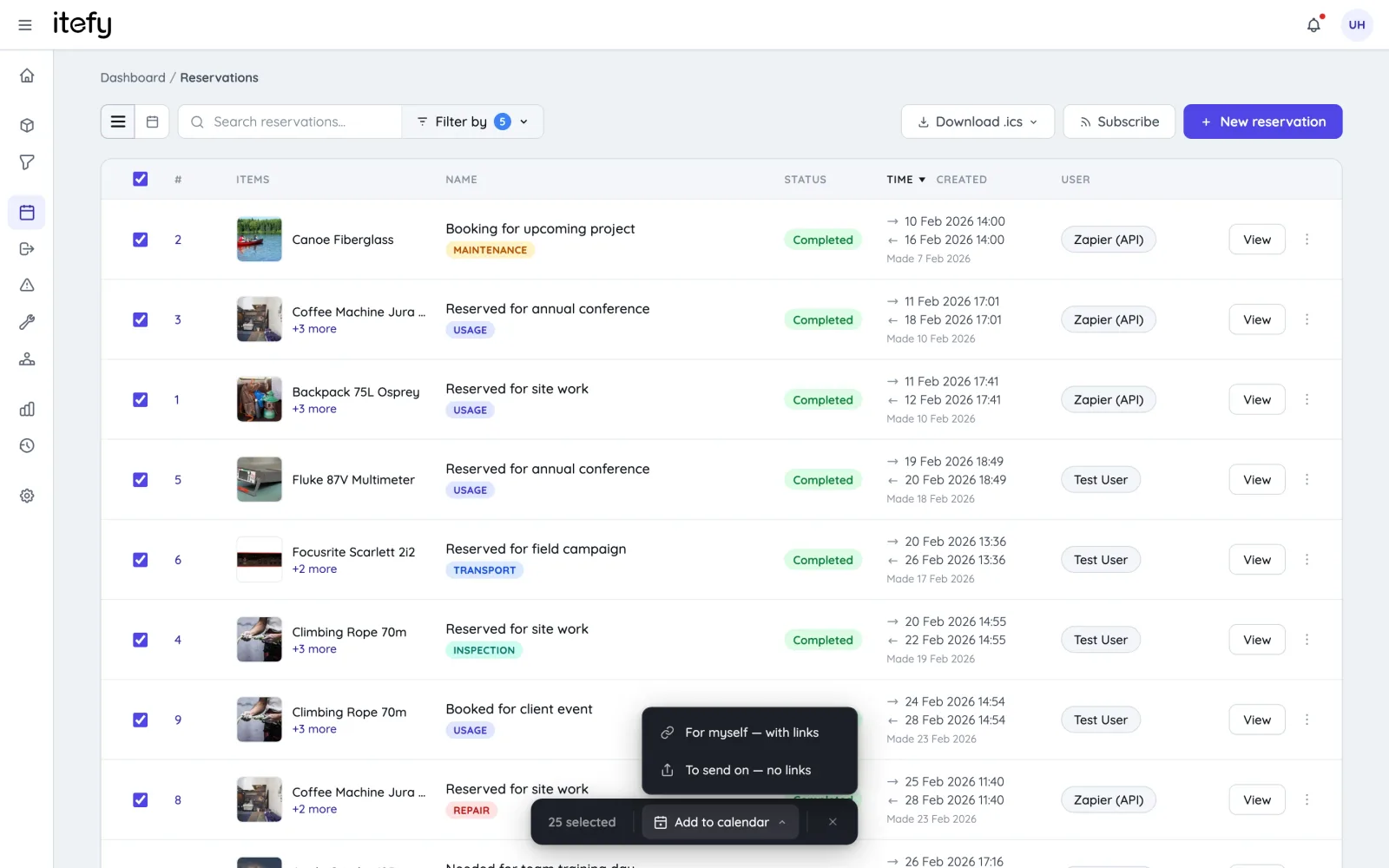
If you have also subscribed, the two do not collide. Each booking carries the same identity in both places, so your calendar treats them as one event instead of showing it twice.
A version for sending on
Every download comes in two versions. For myself includes a link back to the booking in Itefy. To send on leaves the links out, for when the file goes to a customer, a venue or a subcontractor who does not have an Itefy login — a link they cannot open is just noise.
Only the links are removed. The equipment list, the person responsible and any remarks stay in the file, and remarks are usually written for colleagues, so give them a quick read before forwarding a booking outside the team.
Checkouts show up as a return date
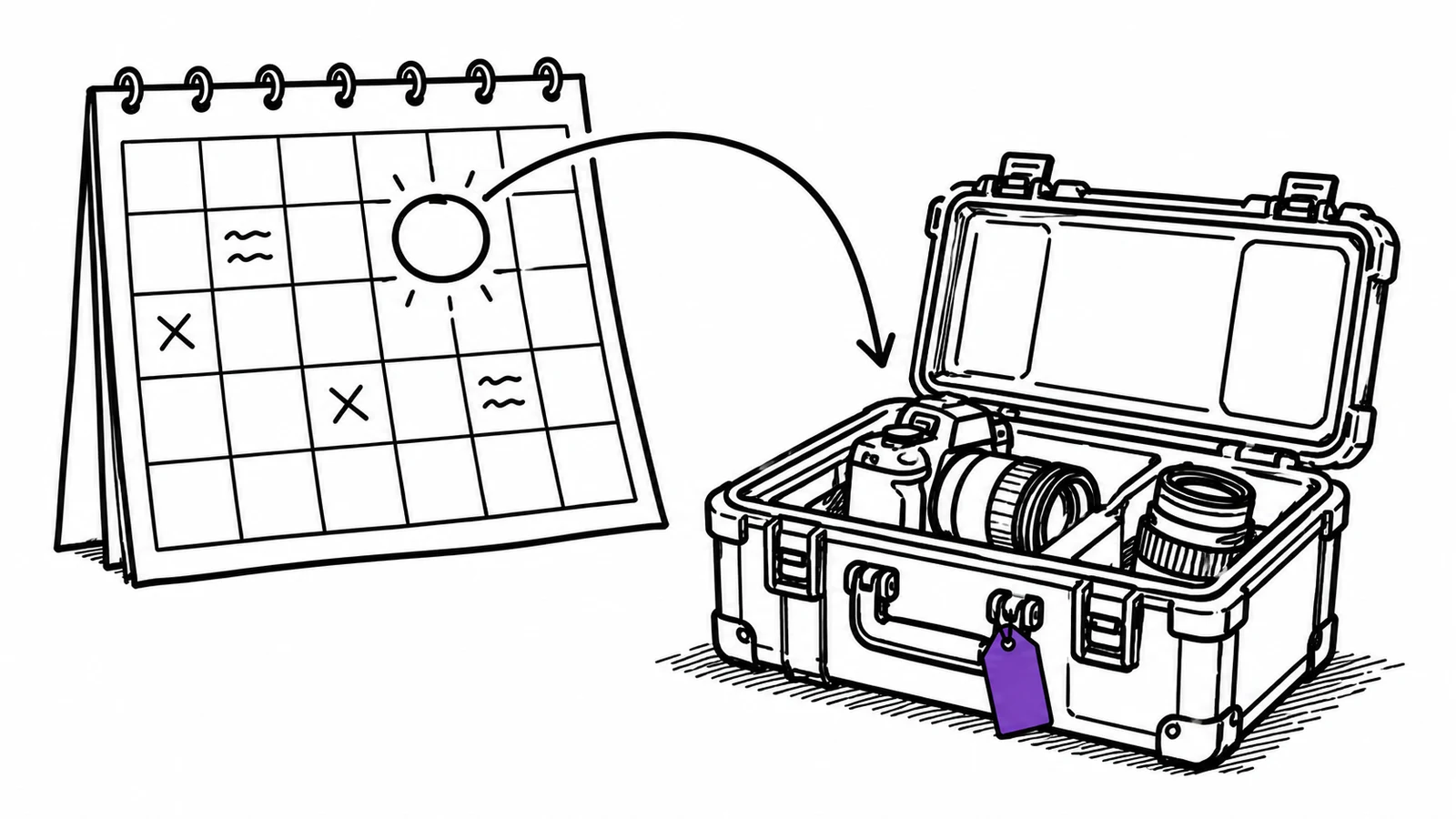
A checkout appears in your calendar as a one-hour event ending at its due time, not as a bar stretching across the whole loan. A two-week checkout drawn across two weeks would bury everything else in your month view, and the date you actually need to see is the day the equipment is supposed to come back.
A checkout without a due date does not appear, because there is no date to put it on.
Treat the link like a password
Calendar apps fetch a subscription without signing in to anything. That is how the whole mechanism works, and it means the link itself is the key: anyone who has it can read the bookings it covers.
Three things follow from that, and they are built in:
- Links are personal. Yours shows what you can see in Itefy, and nothing more.
- Links die with the membership. If someone leaves your Itefy account, their links stop working at once, so a former colleague's calendar does not keep receiving your bookings.
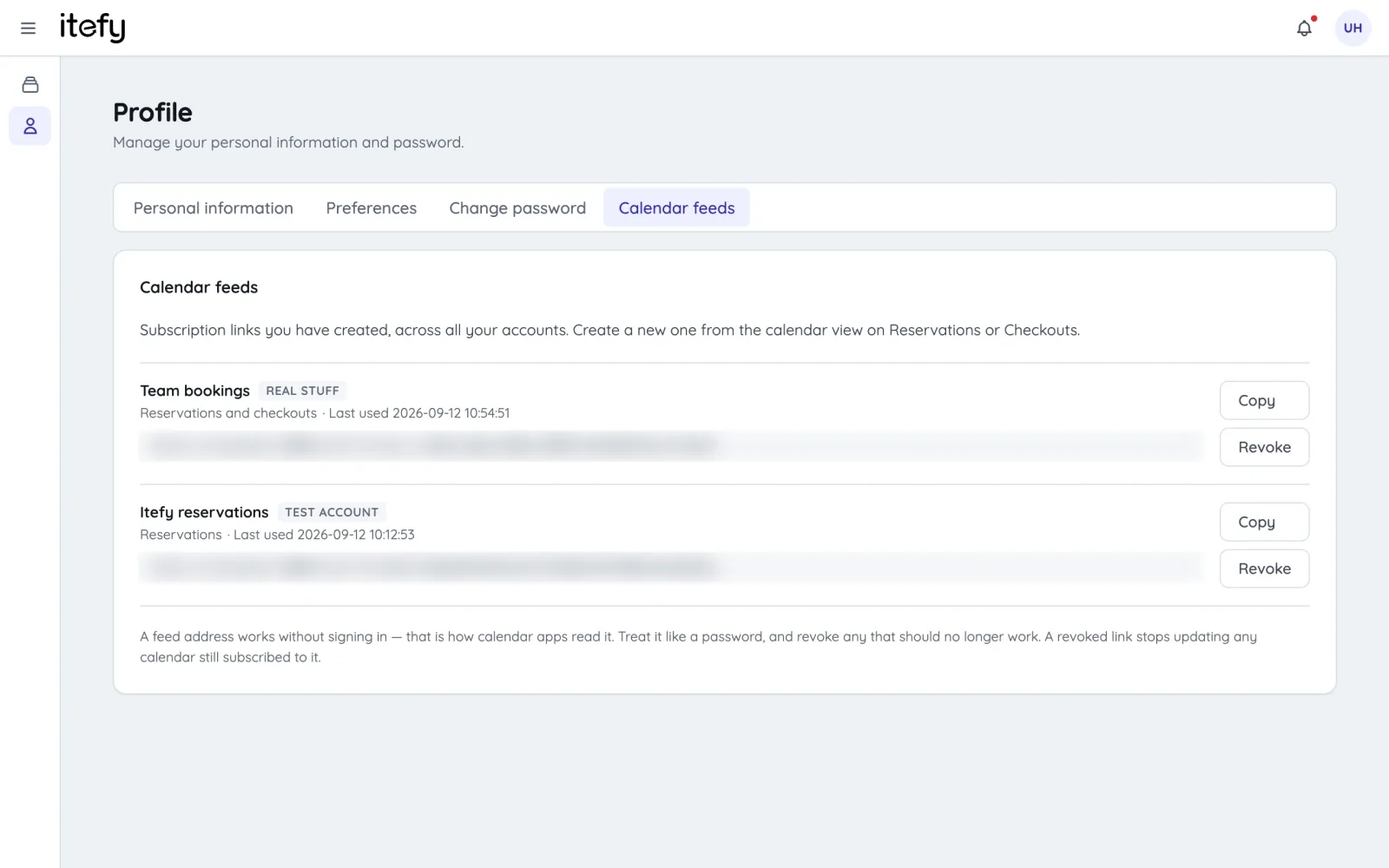
- You can revoke any link. Every link you have made is listed under Profile → Calendar feeds, with the last time a calendar fetched it.
What it does not do
The sync goes one way: out of Itefy. You cannot create a booking in Google Calendar and have it appear in Itefy.
That is not an oversight. An event in Google Calendar has a title and a time, and no equipment attached. There would be nothing for Itefy to reserve, and no way to check that the camera is not already booked by somebody else — which is the whole reason for booking in Itefy in the first place. (If double bookings are the problem you are trying to solve, we wrote about that in how to stop double-booking shared equipment.)
So the division of labour is simple: book in Itefy, read it anywhere.
Which plans include it
All of them. Calendar sync is included on Basic, Startup, Business and Enterprise at no extra cost, and it works on a trial too.
The step-by-step instructions, with where to click in each calendar app, are in the help centre: Sync bookings to Google Calendar, Outlook or Apple Calendar.
Frequently Asked Questions
-
Yes. Click Subscribe in the Reservations or Checkouts calendar, create a link, and add it in Google Calendar under Other calendars, From URL. Outlook and Apple Calendar work the same way.
-
Google refreshes subscribed calendars on its own schedule, usually every 8 to 24 hours, and Outlook can take longer. For a booking happening today, use Add to calendar on the booking itself, which lands in your calendar immediately.
-
No. The sync goes one way, out of Itefy. An event in Google Calendar has no equipment attached, so there would be nothing for Itefy to reserve.
-
All of them — Basic, Startup, Business and Enterprise.